|
The Sort tool is used to sort a set of lines in a text file, or sort a set or records in a binary file. Use the 'Tools > Sort' menu option to access the Sort tool.
Sorting Text Lines
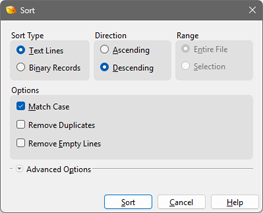
To sort a set of lines in a text file, choose the Text Lines option in the Sort dialog. When sorting, a key is calculated for each line where the key is the value to sort. By default, the key is a string starting at the first column but different keys can be specified in the Advanced Options section below. When sorting, the lines in the file are arranged depending upon their key values. If Descending order is chosen then the keys are sorted in alphabetical order (A at the top and Z at the bottom). If Ascending order is chosen then reverse-alphabetical order is used. The order of other symbols is determined by their order in the ASCII table. By default, the entire file is sorted. If bytes are selected in the file, choose the Selection option to sort just those lines that contain the selection. Click the Sort button to begin the sort. A stable sort algorithm is used, meaning that the relative order of lines is preserved if their keys match.
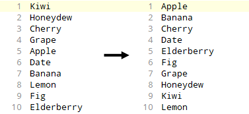
When the Match Case toggle is enabled, case is used when comparing keys so that 'a' comes before 'A' in the sort order (ASCII order is used). If the Match Case toggle is turned off then case is ignored so 'a' and 'A' are considered the same character. When writing the final file, if multiple lines have the same key and Remove Duplicates is enabled, only the first line of the matching set is written to the file and the other lines are deleted. If Remove Empty Lines is enabled then any lines that do not contain any characters are deleted from the file. To also remove any text lines that just contain whitespace characters, enable the Ignore Leading Whitespace toggle in the Advanced Options.
Advanced Text Sorting
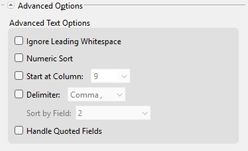
The Advanced Options section of the Sort dialog allows changing how the key for each line is calculated, and can be used to sort CSV or numeric data. If the Ignore Leading Whitespace toggle is turned on then all tabs or whitespace characters at the beginning of the line are ignored when calculating the key for the line. Note that the whitespace characters are still included when the lines are written at the end of the sort.
When Numeric Sort is enabled, a decimal, hexadecimal, or floating-point number at the beginning of each line is used as the key when comparing lines. The number is read until the first non-numeric value is encountered. For example, the text line "123abc" would be sorted as the number "123", and the line "5.3 ohms" would be sorted as "5.3". If Numeric Sort is off, the lines will only be compared as strings which may produce incorrect sorting for numeric data.
Enable the Start at Column toggle and enter a starting column in the attached field. All data before that column will be ignored when calculating the key for the line and the first column in each line is 1. If Ignore Leading Whitespace is on, then any whitespace starting at this column is ignored.
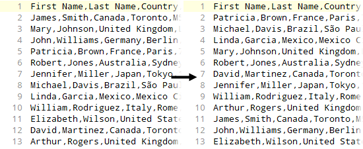
Some text data contains a number of fields separated by a text delimiter. For example, Commas Separated Value (CSV) data contains fields separated by commas. To sort this type of data, enable the Delimiter toggle and choose which delimiter the data uses (Comma, Semicolon, Tab, Pipe, Space, or Custom). When using the Custom option, enter the character string to use as the delimiter in the field that appears. Next, choose which field in the file to sort using the drop-down list Sort by Field. This list shows sample data from the first line in the file. If the first line of the file contains header data and should not be included in the sort, select data starting from the second line of the file before opening the Sort tool. For example, the following image shows CSV data sorted by Last Name.
Some CSV tools encode strings that contains a delimiter character inside double quotes '"'. To handle this type of data correctly, enable the Handle Quoted Fields toggle. Note that repeated quotes '""' in this system indicates a single character '"'.
Sorting Binary Records
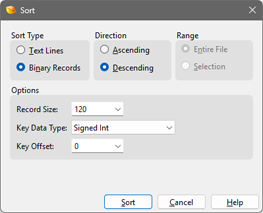
To sort binary data, enable the Binary Records toggle. Using this toggle assumes that the current file or selection contains a set of binary records that are each the same size. Enter the size in the bytes in the Record Size field. Each record is assumed to have a key value inside the record that is used to sort the record. Enter the data type of the key in the Key Data Type drop-down list and all of the base types in the Data Types help topic can be used. As well, the key could be four different types of strings. The string could either be a regular string which uses the character set from the current Edit As, or could be a WString (16-bit Unicode string). As well, the string could be fixed length, in which the length in characters should be entered in the field that appears, or the string could be a null-terminated string which is read from the file until a null (zero) character is encountered. By default, the key is assumed to be at the first byte position in the record, but a different byte offset from the beginning of the record can be entered in the Key Offset field.
Clicking Sort will sort each record using the calculated keys and then write out the records in the correct order.
Scripting
Sorting can be performed in a script using the SortLines and SortRecords functions.
|