

|
Pro text/hex editor
with Binary Templates
|

Announcing 010 Editor - Version 17.0
Introducing 010 Editor v17 with Auto-Recovery to make sure your data is safe. Unsaved edits are now written to a recovery file and in the case of a power outage, crash, etc., these edits can be recovered. A shield icon now appears in the status bar when an Auto-Recovery file was written:

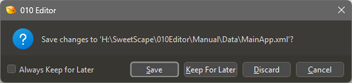
The Save/Discard dialog has a new option 'Keep for Later'. Using 'Keep for Later' saves the changes to a recovery file and re-applies them when the file is opened again.
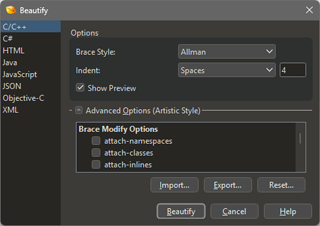
Added a Beautifier for C, C++, C#, HTML, Java, JavaScript, JSON, Objective-C and XML. Uses the Artistic Style and HTML Tidy libraries.
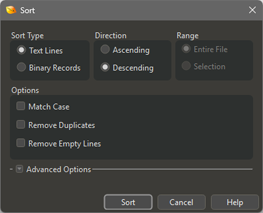
Can sort text lines or binary records in a file with 'Tools > Sort'. Supports removing duplicate and empty lines, CSV sorting and numeric sorting.
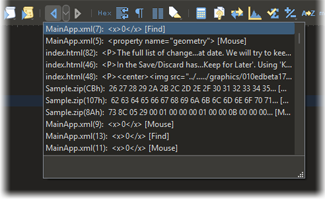
A Navigation History now stores recent caret positions in a file. Use the new navigation arrows in the Tool Bar, Alt+Left/Right, or 'Go Back/Go Forward' to step through the Navigation History. A drop-down list in the Tool Bar shows the history:
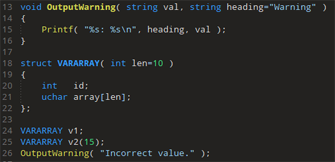
Templates and Scripts now support default arguments for functions and for structs with arguments:
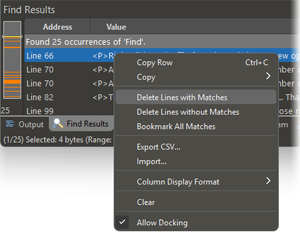
Right-click on the Find results and choose new options 'Delete Lines with Matches', 'Delete Lines without Matches' or 'Bookmark All Matches':
Added 'Count Occurrences' to count the number of times a value exists using Find or Find in Files:

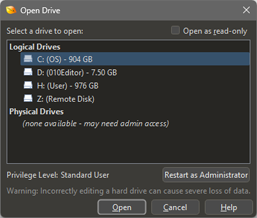
Added 'Restart as Administrator' option when opening drives:
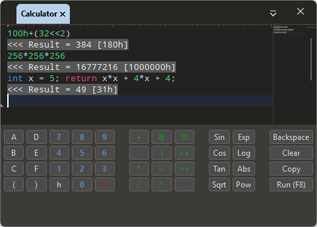
The Calculator now shows a list of the last evaluated expressions:
More new features are listed below.
To download the latest version please click the following link:
See also:
- What's New in Version 16.0
- What's New in Version 15.0
- What's New in Version 14.0
- What's New in Version 13.0
- What's New in Version 12.0
- What's New in Version 11.0
- What's New in Version 10.0
- What's New in Version 9.0
- What's New in Version 8.0
- What's New in Version 7.0
- What's New in Version 6.0
- What's New in Version 5.0
- What's New in Version 4.0
|
|
Version 17.0 - October 28th, 2026
The following is an overview of the new functionality in version 17.0 of 010 Editor:
- 010 Editor now protects your work by writing any unsaved changes to an Auto-Recovery file. In the case of a power outage, crash, etc., the changes can be recovered the next time the file is opened.
- When closing a modified file, the Save/Discard dialog has a new option 'Keep for Later'. Using 'Keep for Later' writes the changes to a recovery file and re-applies them when the file is opened again.
- Added 'Format > Beautify' to apply formatting rules to code (C, C++, C#, Java, JavaScript, Objective-C), or HTML, JSON, or XML data. Uses the Artistic Style and HTML Tidy libraries.
- Added 'Tools > Sort' option to sort text lines or binary records in a file. Supports removing duplicate and empty lines, CSV sorting and numeric sorting.
- A Navigation History now stores recent caret positions in a file. Use the new navigation arrows in the Tool Bar, Alt+Left/Right, or 'Go Back/Go Forward' to step through the Navigation History.
- Templates and Scripts support default arguments for functions and for structs with arguments.
- Right-click on the Find results and choose new options 'Delete Lines with Matches', 'Delete Lines without Matches' or 'Bookmark All Matches'.
- Added 'Count Occurrences' to count the number of times a value exists using Find or Find in Files.
- Can search for nibbles when searching with hex wildcards (for example, '3?' or '?F').
- Added 'Restart as Administrator' option when editing drives.
- The Calculator now shows a list of the last evaluated expressions.
The following is a list of all new features in version 17.0 of 010 Editor:
- Auto-Recovery
- When making edits, any unsaved changes are written to a recovery file after a certain time of inactivity.
- If 010 Editor shuts down unexpectedly (power outage, crash, etc.) a dialog asks whether to recover the unsaved changes when the file is opened again.
- The Undo stack is recovered as well. Use Undo/Redo to step through the recovered changes.
- The Status Bar shows a shield icon when the Recovery file has been written or a ... icon if the Recovery file is pending.
- Turn off Auto-Recovery or adjust the recovery time on the Backup Options page.
- See the Directory Options page to change the location where Recovery files are written.
- See the Cache Options page to change the maximum size and number of files stored.
- A Recovery file only contains the list of edits since the last save.
- If the Recovery file write fails because of a full disk, a warning icon is displayed in the Status Bar.
- If the file was modified since the Recovery file was created, a dialog is shown with a warning message asking to confirm the recovery.
- Changes can still be applied to a modified file but the results could be unexpected (use Undo/Redo to step through the changes).
- Use 'File > Special > Manage Recovery Files' to view and delete auto-recovery files.
- Recovery files are written in a separate thread to prevent UI pauses.
- Keep Changes For Later
- When closing files that have unsaved changes, a dialog now asks whether to 'Save', 'Discard', or 'Keep for Later'.
- If 'Keep for Later' is chosen, the changes are written to a recovery file and then re-applied the next time the file is opened.
- An 'Always Keep for Later' checkbox can be checked to automatically save and recover any changes when a file is closed or when 010 Editor is shut down.
- The full Undo Stack of the changes is recovered so that Undo/Redo can be used to step through the changes.
- Whether to ask to save or Always Keep for Later can be adjusted using the Editor page of the Options dialog.
- The recovery files are written to the Recovery directory specified in the Directories page of the Options dialog.
- The maximum number of recovery files and the maximum size can be controlled with the Cache page of the Options dialog.
- A warning is displayed if using Keep Changes for Later would create a recovery file that is too large for the cache or if the disk is full.
- Changes can be kept for Untitled files as well (a UID is added to the name in this case).
- Beautify/Tidy
- Added 'Format > Beautify' to apply formatting rules to code or tagged data to increase readability.
- Supports C, C++, C#, HTML, Java, JavaScript, JSON, Objective-C and XML.
- Uses the Artistic Style libary for beautifying code, HTML Tidy for HTML, RapidJSON for JSON, and pugixml for XML.
- Supports 67 different options from the Artistic style library and 16 different brace styles.
- Supports 64 different options from the HTML Tidy library.
- Shows a preview in the main editor as the different options for beautify are changed (preview can be turned off).
- Can export beautify settings to a file, and import those settings or Artistic Style ini files.
- Can reset beautify settings to their original values.
- Supports beautifying Unicode files.
- Use 'Format > Beautify Again' to re-apply the last beautify action.
- New functions 'Beautify' and 'BeautifyString' allow beautify to be performed in a script.
- Sort
- Added 'Tools > Sort' option to sort text lines or binary records in a file.
- For sorting text files, can sort in alphabetical or reverse-alphabetical order and can ignore case.
- Contains options to remove duplicates lines or empty lines.
- Can ignore whitespace at the beginning of each line and can specify the starting column number.
- Numeric support can be enabled to properly sort numbered data.
- Comma-separated value files can be sorted (CSV) and different delimiters are supported (Comma, Semicolon, Tab, Pipe, Space, Custom).
- Can choose which field to sort on for CSV files.
- Quoted fields can be handled within CSV files.
- Choose whether to sort the entire file or the current selection.
- When sorting binary records, can specify the length of each record in bytes (records must currently all have the same size).
- Can specify the data type for the key and the offset of the key from the start of each record.
- Supports sorting on integer types, floating point types, and fixed-length and null-terminated strings.
- Long sorts are performed with a thread.
- New functions 'SortLines' and 'SortRecords' allow sorting to be done in a script.
- Navigation History
- Added a Navigation History accessed with 'Edit > Go Back' and 'Edit > Go Forward' or new arrow icons in the Tool Bars.
- Jump to previously accessed locations within a file.
- Can use Alt+Left or Alt+Right for Go Back or Go Forward.
- Most operations that move the caret create a new Navigation History entry (e.g. Find, Goto, clicking on a line).
- When using Go Back or Go Forward, if the selected Navigation History entry is in a different file, that file will be focused.
- Click the down arrow beside the Go Back icon in the Tool Bar to access a list of Navigation History entries.
- In the list, each entry shows a preview of the line where it was created, a line number, and the reason it was created.
- The current entry is highlighted in the list and select an entry to jump to that location.
- After using Go Back, use Go Forward to return to the previous position.
- Navigation History can be used to jump between recent rows in the Template Results.
- After using Find, use Go Back to return to the previous position in the file.
- The editor cursor keys (Up, Down, Left, Right) do not create Navigation History entries and a new entry is only created if the new Navigation History entry is on a different line than the last entry.
- Templates and Scripts
- Supports default arguments for functions and for structs with arguments.
- Can Search though the Template Results Comment column using Find.
- The Template Results can now show or hide the Start, Size, Color and Comment columns.
- SScanf now supports scansets.
- Inline read functions that return a variable now respect the current Column Display Format.
- In the Template Results, Go Back and Go Forward can be used to jump between recent rows of the results.
- The type for numeric constants is now the first type that will fit the constant from the list "int, uint, int64, uint64".
- The read/name/comment functions are now called with more restrictive permissions.
- Find
- Can right-click on the Find results and choose new options 'Delete Lines with Matches' and 'Delete Lines without Matches'.
- All Find results can be converted to bookmarks by right-clicking the results and choosing 'Bookmark All Matches'.
- Use 'Find > Count Occurrences' to count the number of times a value exists in a file.
- If the Find Bar is visible, the text from the Find Bar is counted, otherwise the text from the current selection is counted.
- Count Occurrences can also be accessed using the up arrow beside the All button in the Find Bar, or the Find in Files button in the Find in Files Bar.
- Can search for nibbles when searching with hex wildcards (for example, '3?' or '?F').
- Can Search though the Template Results Comment column.
- For long Find in Files operations, the Stop button was renamed to Cancel.
- Text Editor
- Support complex surrogates when rendering characters.
- General
- Added 'File > Special > Restart as Administrator' to restart 010 Editor with administrator privileges.
- The Open Drive dialog box now displays whether the program has administrator access and has a 'Restart as Administrator' button.
- When opening a drive fails, the error dialog box has an option to Restart as Administrator.
- The Calculator now shows a list of the last evaluated expressions. Running the Calculator or pressing '=' evaluates the last expression.
- In the Compare dialog, the Compare button is focused by default instead of a file field.
- Mousing over a file tab now shows the Modified on Disk date if the file is currently open.
- Changed the window title of the 010 Editor splash window to '010 Editor Splash'.
- Options
- On the General Page, added an option to display App Bars (Find/Goto/etc) above the editor instead of below.
- On the Opening Files page, can set the Floating Tab Group Style to control whether Floating Tab groups have an icon in the Task Bar and whether the Floating Tab Groups are always on top.
- On the Editor page, added a Closing Modified Files option that can be set to 'Ask to Save Changes' or 'Keep Changes for Later'.
- On the Backups page, added a toggle for Auto-Recovery. Can also specify the number of seconds since the last edit was made before the recovery file is written.
- On the Directories page, added a Recovery Directory option.
- On the Cache page, added a Keep Changes for Later and an Auto-Recovery section. Choose the maximum disk size of each cache and the maximum number of files in each cache.
- Bugs
- Fixed in the Find bar, when searching using hex wildcards, a crash was possible with certain find values.
- Fixed a possible crash using array initializers with an array that was too small.
- Fixed a possible crash assigning a bgcolor function and a solid color to the same variable.
- Fixed when using a color picker in the template results, cancelling the color picker could set the alpha value to 255.
- Fixed a possible hang starting the debugger when using a typedef with recursive structs.
- Fixed when a hidden column in the Template Results was is changed to display decimal, the column could be shown on restart.
- Fixed some scrolling issues when clicking and dragging on the minimap for very large hex files.
- Fixed a possible crash when dragging files from recent files list to other locations.
- Fixed the Column selection can now work to the last column of the hex editor.
- Fixed the OutputPaneSave function now askes for write permission before being allowed to save a file.
- Fixed using custom characters sets where certain characters with large Unicode values were being transformed as '?'.
- Fixed in the Hex Editor, when using Auto-Width and jumping to a Find result, sometimes the find result would not be displayed correctly.
- Fixed selection marks set with 'Mark Selection Start' or 'Mark Selection End' were not moving correctly when data was inserted or deleted in a file.
|
|
For a full list of changes in other versions of 010 Editor, please see the Release Notes.

