|
A record of all important locations in all files that have been visited is stored on a list called the Navigation History. The Navigation History can be used to easily jump to positions or files that were visited previously, and can be used to switch back and forth between locations. Most operations that move the caret, including clicking on a line, using Find, Goto, etc., generate an entry in the Navigation History. The main operations for using Navigation History are:
- Go Back - Accessed using 'Edit > Go Back', Alt+Left, or the left arrow icon in the Tool Bar. Returns the caret to the previous location in the Navigation History list. If the last location was in a different file, that file will be focused.
- Go Forward - Accessed using 'Edit > Go Forward', Alt+Right, or the right arrow icon in the Tool Bar. If Go Back has been used, this operation will return to the most recent location on list.
Note that not all operations that move the caret create a Navigation History entry. For example, using the cursor keys Up, Down, Left and Right do not generate an entry, but using Page Up, Page Down, Home and End do. Also, if a caret is moved on the same line as the last Navigation History entry, a new Navigation History entry is not created.
The Go Back and Go Forward operations can be accessed on the Tool Bar. Clicking the down arrow between the buttons shows a list of the recent Navigation History entries:
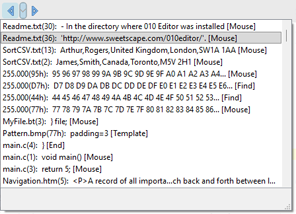
The top-most line of this dialog shows the most recent Navigation History entry and clicking on a row in the dialog will jump to that position. For text files, the line number is shown in brackets '(' and ')' and a preview of the text line is shown. For hex files, the byte address is shown in brackets '(' and ')' and the hex bytes starting at the navigation position are shown. In square brackets '[' and ']' is a description of the type of operation that created the Navigation entry. For example, '[Mouse]' means the Navigation entry was created by clicking on the file. The current entry in the Navigation History list is highlighted.
Navigation History also works with the Template Results. Using Go Back and Go Forward in the Template Results will jump to the previous variables that were selected in the table.
|