|
010 Editor includes an Auto-Recovery system that writes any unsaved file edits to a backup file on disk. If 010 Editor shuts down incorrectly because of a power outage, crash, etc., the unsaved changes can be restored the next time the file is opened. This recovery system is also used when closing a modified file in 010 Editor and clicking the Keep for Later option in the Save dialog (see Keep Changes for Later).
Recovery files are written with a ".recovery" extension in the Recovery Directory as specified in the Directory Options dialog. Currently recovery files only store the list of edits that have been applied to the file and do not contain a copy of the original file. Limits are put on the number and size of recovery files that are stored on disk and these limits can be controlled with the Cache Options dialog. The current list of recovery files can be inspected using the Manage Recovery Files dialog.
Auto-Recovery
When an edit is made in either the Text Editor or Hex Editor, and after the editor has been idle for a number of seconds, the changes are written to a recovery file. When edits have been made but the recovery file has not been written yet, a pending icon is displayed in the Status Bar:  . After the recovery file has been successfully written, a solid shield recovery icon is displayed: . After the recovery file has been successfully written, a solid shield recovery icon is displayed:  . If an error occurred when writing the recovery file, either because the file was too big for the cache or the disk was full, an error icon is shown in the status bar: . If an error occurred when writing the recovery file, either because the file was too big for the cache or the disk was full, an error icon is shown in the status bar:  . An error message can be seen by placing the mouse cursor over the icon. Auto-Recovery can be turned off and the number of seconds adjusted in the Backup Options dialog. . An error message can be seen by placing the mouse cursor over the icon. Auto-Recovery can be turned off and the number of seconds adjusted in the Backup Options dialog.
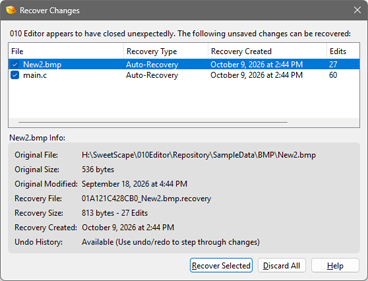
When opening a set of files and an Auto-Recovery file exists for any of the files, a dialog is displayed asking for confirmation to recover the changes, as shown above. Turn off the checkbox beside any of the files to discard those recovery files. After clicking Recovery Selected, the changes will be applied to the file and the Undo stack will be available for the changes that were applied. Undo and Redo can then be used to step through the changes. Note that the recovered file is marked as modified and the recovered changes are not saved to disk until Save is used. Clicking Discard All will delete all the recovery files for the listed files.
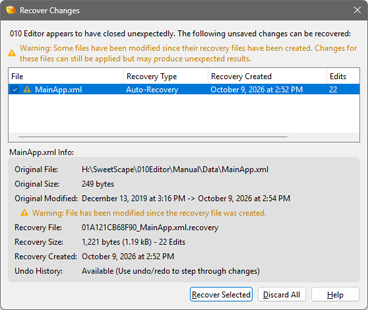
If a recovery file is created for a file and then that file is modified by another program, a special warning is displayed before the file is recovered, as shown above. The changes for the file can still be recovered, but depending upon how the file was modified by the other program, the changes may not be applied correctly. After recovery, use Undo and Redo to verify the changes are correct before saving the file. The original modification date and the new modification dates are shown separated by '->' in this dialog.
Keep Changes for Later
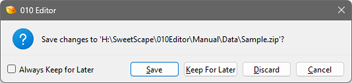
When a file is closed that has unsaved changes, the above dialog is displayed with options for Save, Discard and Keep for Later. If Keep for Later is chosen, the unsaved changes are written to a recovery file, and then those changes are re-applied to the file when it is opened again. If multiple files that have unsaved changes are closed at the same time, this dialog displays a list of files and clicking Keep All for Later will write all the unsaved changes to recovery files. If the Always Keep for Later toggle is checked and the Keep for Later button is clicked, unsaved changes will automatically be written to recovery files and this dialog will not be displayed again. Whether to ask to save changes or automatically Keep for Later can be controlled in the Editor Options dialog with the Closing Modified Files option.
If Keep for Later is selected for a file, but then the file is modified by an external program, a special warning message is displayed similar to the Auto-Recovery warning dialog above. The changes can still be applied by clicking Recover Selected but note that the changes may be applied unexpectedly depending upon how the external program modified the file. After applying the changes, use Undo and Redo to step through the changes to verify they were applied correctly.
The list of current Keep Changes for Later files can be viewed and managed using the Manage Recovery Files dialog.
Manage Recovery Files
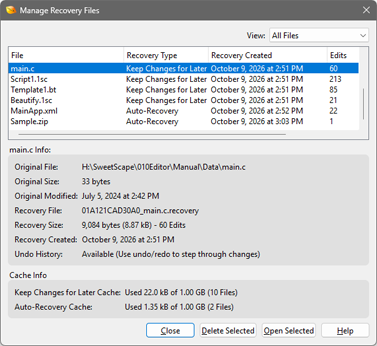
The current list of recovery files for Auto-Recovery and Keep Changes for Later can be viewed and managed using the Manage Recovery Files dialog. Access this dialog by clicking the 'File > Special > Manage Recovery Files' menu, by clicking a Manage Files button in the Cache Options dialog, or by clicking the recovery icon in the Status Bar and selecting Manage Recovery Files. The oldest files are displayed at the top of the dialog. By default, both types of recovery files are displayed but just one type can be viewed by selecting the View drop-down list and selecting either Auto-Recovery or Keep Changes for Later. Multiple files can be selected in the list using standard multi-select. Hold either Ctrl or Shift while clicking on the list to multi-select. Delete the selected files from the disk by clicking the Delete Selected button, or open the selected files by clicking Open Selected. The number of files and the amount of space used in each Cache is displayed at the bottom of the dialog. See the Cache Options dialog to manage the Cache sizes.
|