

|
Pro text/hex editor
with Binary Templates
|

Binary Templates
 Editing binary data is hard. You have to know exactly which bytes to edit in a file
and editing the wrong bytes can render a file unusable. Binary Templates
take the mystery out of binary data by allowing you to understand
data and edit it in powerful, intuitive way.
Editing binary data is hard. You have to know exactly which bytes to edit in a file
and editing the wrong bytes can render a file unusable. Binary Templates
take the mystery out of binary data by allowing you to understand
data and edit it in powerful, intuitive way.The image on the right displays a ZIP file opened in 010 Editor. Most hex editors just display the raw hex bytes of the file (1) but 010 Editor goes beyond this by showing the file parsed into a hierarchical data structure for easy editing (2). The data structure is make up of a series of variables and selecting a variable in the list shows which hex bytes correspond to that variable (in the image, the variable 'frVersion' corresponds to the hex bytes '14 00'). 010 Editor can automatically apply a Binary Template to a file when the file is opened. Binary Templates for ZIP, BMP, and WAV files are included with 010 Editor and a whole range of other templates are available for download in our Template Archive. If you are working with your own binary format, writing your own Binary Template is not difficult. |
Writing Binary Templates

|
Binary Templates look similar to structure definitions in C/C++,
but are more flexible since they may include if, for, or
while statements as well as functions or complex expressions.
A Template is executed as a program, starting from the
first line of the file. Whenever a variable is declared, that variable is
mapped to a set of bytes in a file. Data from that file can then
be read from or written to by accessing the created variable.
For an example of how a Template works, see the next section. 010 Editor contains full support for editing, running and debugging Binary Templates. An integrated source code editor is provided with syntax highlighting (pictured left).
Note: Some other editors provide a structure viewer using structs similar to C/C++; however, these viewers are not nearly as powerful as Binary Templates are not capable of parsing entire binary files. |
Example Template
The following example demonstrates a simple Binary Template. This Template is designed for a binary file containing a series of employee records.
struct FILE {
    struct HEADER {
        char    type[4];
        int     version;
        ushort  numRecords;
    } header <bgcolor=cLtGray>;

    struct RECORD {
        int     employeeId;
        char    name[40];
        float	salary;
        if( file.header.version > 1 )
            int      numChildren;
        if( file.header.version > 2 )
            time_t   birthDate;
    } record[ file.header.numRecords ];

} file;
|

Templates are very flexible any may contain complex expressions including any of the regular C operators such as +, -, *, /, &, |, ^, ~, %, ++, --, ?:, etc. A large number of functions are available to modify how Templates run. See Template Download below for more examples of Templates.
Editing the Template Results
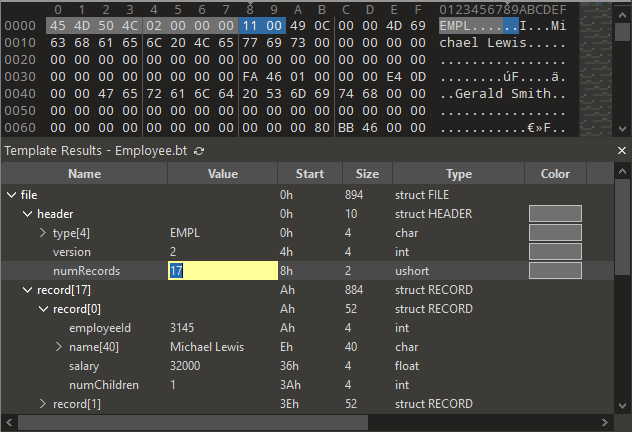 Once a Template is run, the variables defined in the Template can be accessed in the
Template Results panel displayed below the Hex Editor or in the Variables tab
of the Inspector. The Template Results shows a full
hierarchal view of the data as shown on the left. When a variable is selected from
the list, the corresponding hex bytes will be selected in the main Hex Editor Window.
Variables can be edited by clicking on the Value field, entering a new value and
pressing Enter.
Once a Template is run, the variables defined in the Template can be accessed in the
Template Results panel displayed below the Hex Editor or in the Variables tab
of the Inspector. The Template Results shows a full
hierarchal view of the data as shown on the left. When a variable is selected from
the list, the corresponding hex bytes will be selected in the main Hex Editor Window.
Variables can be edited by clicking on the Value field, entering a new value and
pressing Enter.
To lookup which variable corresponds to a certain byte position in the Hex Editor, click on a byte in the Hex Editor and press Ctrl+J (Jump to Template Variable). 010 Editor will select the variable in the Template Results which contains that byte. |
Struct Outlining

Another way of reading values from the Template variables is to position the mouse cursor over some bytes in the Hex Editor Window. If the bytes belong to a struct in the Template Results, lines will be drawn around the struct to indicate where the variables exist. This is called struct outlining. A hint popup will also be displayed which shows the value of the variable at that position.
Editing with Scripts
Another way of editing variables produced from a Template is to use a Script. Scripts have a syntax similar to C and define variables in the regular way. For example, to double every employee's salary the following Script could be used:
int i;
for( i = 0; i < file.header.numRecords; i++ )
    file.record[i].salary *= 2.0;
|
The Script can automatically modify any of the variables defined in the Template. Undo and Redo are supported for Scripts as with any other editing operation.
Advanced Features
010 Editor includes some additional functionality that make Templates even more powerful. For example:
|
|
|
Template Download
A number of example Templates are available in the online template repository, which can be accessed using the following link:
To submit Templates to the archive, see the Submitting Files page. Feel free to submit any Templates you have which may be useful to other people.
For more information about 010 Editor see the 010 Editor Home Page, Online Tour or the Full Feature List.

